Proxima
Your connection. Your direction.
A path of your own, for every connection. Choose your servers, routing, and DNS with Proxima.
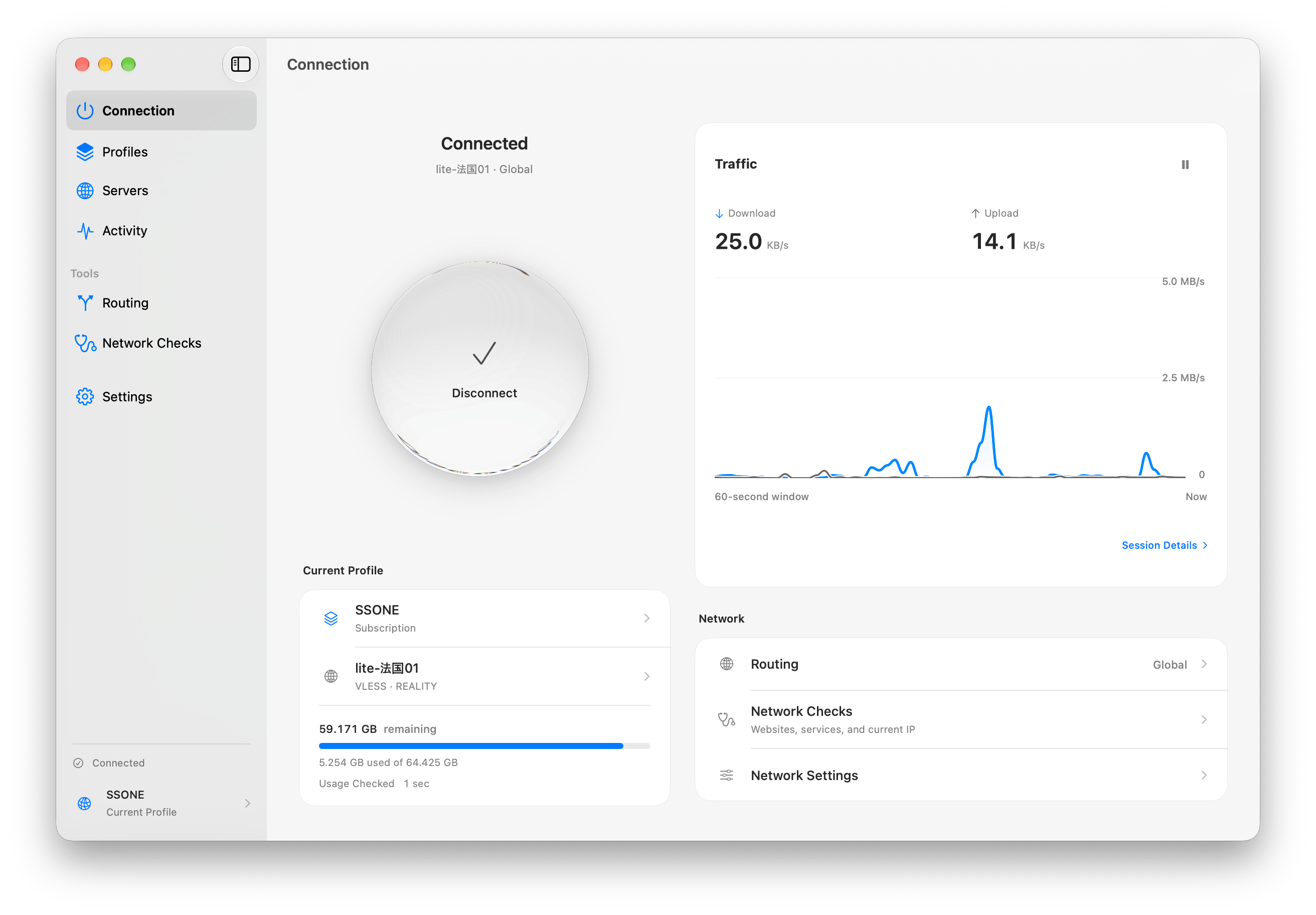
Your connection, live traffic, and remaining data. All in one view.
macOS · iPadOS · iOS · Windows · Android
Illustrative interface showing product features.More ways to connect. Even on limited networks.
When some paths are unavailable in your region or network, Proxima helps you explore usable alternatives and choose more stable servers and routes.
- Find an available path
- Choose a server for current conditions
- Connect directly where it fits
Explore your connection modesGlobal · Rule · Direct
Use a VPN for all connections, split paths by destination, or connect directly over your current network.
A different path for each destination.
Choose a path using rules for domains, IP addresses, ports, and more.
Illustrative connection paths
Find a route that fits your network.
Connection quality can vary with the path taken, even to the same destination. Proxima compares available routes and selects a connection that better fits your current network conditions.
- Origin and destination
- Explore candidates
- Compare conditions
- Select a route
Candidate routes
Direct connection
SelectedChina → Seoul Direct
145 msPacket loss 2.4%MeasuringUnstable
Tokyo → Seoul
SelectedTokyo Entry → Seoul Exit
68 msPacket loss 0.2%MeasuringStable
Hong Kong → Seoul
SelectedHong Kong Entry → Seoul Exit
96 msPacket loss 0.7%MeasuringAvailable
A choice based on both latency and connection state in this example.
A simulation illustrating product behavior. Routes, latency, and packet loss are examples, not live measurements. Actual routes and connection quality may vary with network conditions.
Entry and Exit arrangements illustrate possible paths. Actual use depends on your configuration and supported combinations.
The right route for each service.
Not all internet traffic needs to take the same path. Proxima classifies each service you connect to and sends video, AI, and domestic services along the server or direct connection that fits best.
Illustrative automatic service routing
Scroll to watch Proxima classify traffic.- Video · ContentYouTubeNetflixTwitchServer Group AFastest-responding server
- AI servicesChatGPTClaudeGeminiServer Group BServer in a supported region
- Domestic servicesBanking services · Government websitesDirectUse your current network
- General webWikipediaRedditGitHubAuto RouteApply your configured rules
Connections classified as video and content go to Server Group A, where the fastest-responding server is selected.
Your rules. Your routes.
Choose connection paths using rules for domains, IP addresses, ports, and more. Reorder your rules or turn individual rules on and off.
- Domain
- IP address
- Port
- 1Domain
*.video.exampleServer Group A - 2Domain
*.ai.exampleServer Group B - 3IP address
203.0.113.0/24Direct - 4Port
22Server Group BOff - Everything elseAuto Route
Inside each group, the right server.
Connections sent to the same Server Group can still choose which server to use, and each group can choose differently.
Response time
Use the server that responds fastest.
Fallback
Move to the next server if the current one has a problem.
Load balancing
Spread new connections across several servers.
Manual selection
Pin the server you want to use.
Your servers. Ready to come along.
Bring the servers and subscriptions you already use.
Paste a subscription URL, scan a QR code, or open a configuration file to add a profile.
Search and favorite servers, and organize multiple subscriptions by profile. Update subscriptions, inspect the original configuration, and export it, all in the app.
Supported protocols
An importable format does not guarantee that every configuration can run. Use profile validation in the app to check support.
- VLESS
- VMess
- Trojan
- Shadowsocks
- SOCKS5
- HTTP
- VLESS security
- TLS · REALITY
- Transports
- TCP · WebSocket · gRPC · XHTTP (supported combinations)
- Config formats
- Clash · sing-box · Xray
When connections change, find a way forward.
If a server or route runs into trouble, choose another available server. When networks change, Proxima recovers according to the connection state.
Recovery as networks change
- Wi-FiConnected
- Wi-FiConnection lost
- CellularReconnecting
- CellularConnected
Network transition simulation. Whether recovery succeeds and how long it takes depend on your environment.
Showing the completed example with reduced motion enabled.
Current simulation state: Cellular, ConnectedAuto-connect conditions
- All networks
- Wi-FiSelected
- Cellular
Connect automatically where you choose.
Choose all networks, Wi-Fi, or cellular as your auto-connect condition. You can also exclude specific Wi-Fi networks.
When networks change, Proxima checks the current connection state and works to recover. Disconnect manually, and auto-connect stops too.
Fits into your Shortcuts.
Add connecting, disconnecting, and mode changes to your everyday routines.
Cellular conditions are available on iPhone and cellular-capable iPad.
See your settings. Understand your connection.
From DNS to individual connections, inspect and adjust what matters to you.
| Destination | Route | Transferred | Close connection |
|---|---|---|---|
| video.example.com | Server Group A | 8.4 MB | |
| api.example.net | Server Group B | 342 KB | |
| cdn.example.org | Server Group A | 1.2 MB | |
| 192.168.1.1 | Direct | 12 KB |
- Encrypted DNS
- Configure DoH and DoT, and set a connection route for each DNS server.
- Host settings
- Assign IPv4 and IPv6 addresses to specific hosts.
- Connection list
- Inspect destinations, routes, and traffic, and close individual connections.
- Network diagnostics
- Check DNS and website responses, your public IP, and the current network status.
- Profile validation
- Check the format and supported settings before saving a profile.
- Session details
- Review connection history, internet checks, and recovery status.
If something goes wrong, export a diagnostic report with sensitive information redacted to help with your support request.
Keep your saved settings protected.
Profiles and server credentials are encrypted on your device.
Protect a backup with a password and move it to another device. Review its contents before restoring only the profiles you need. You can also restore all settings or undo the most recent restore.
Solix Privacy PolicyView backup guide
Back up with a password
Set a password for the backup file and move it to another device.
Review, then restore
Review the backup contents before importing selected profiles or restoring all settings.
Undo a recent restore
You can undo the most recent restore when needed.
Pricing based on the data you use.
Proxima’s connection service uses metered billing.
Review the terms and data rates before getting started. While connected, you can check your remaining data in the app.
Get started with ProximaMeasured by your data use
This is an arbitrary rate for illustration, in Korean won. Actual data rates and detailed service terms will be announced.
View pricing details
Data rates and detailed service terms will be announced.
- Data rate
- To be announced
- Base fee
- To be announced
- Payment method
- To be announced
- Data expiry and rollover
- To be announced
When using external servers or subscriptions, the relevant provider’s fees and terms apply.
Your devices. Your chosen route.
- macOS
- iPadOS
- iOS
- Windows
- Android
Download information coming soon
Ask about ProximaProxima is open source.
Explore the source code on GitHub.